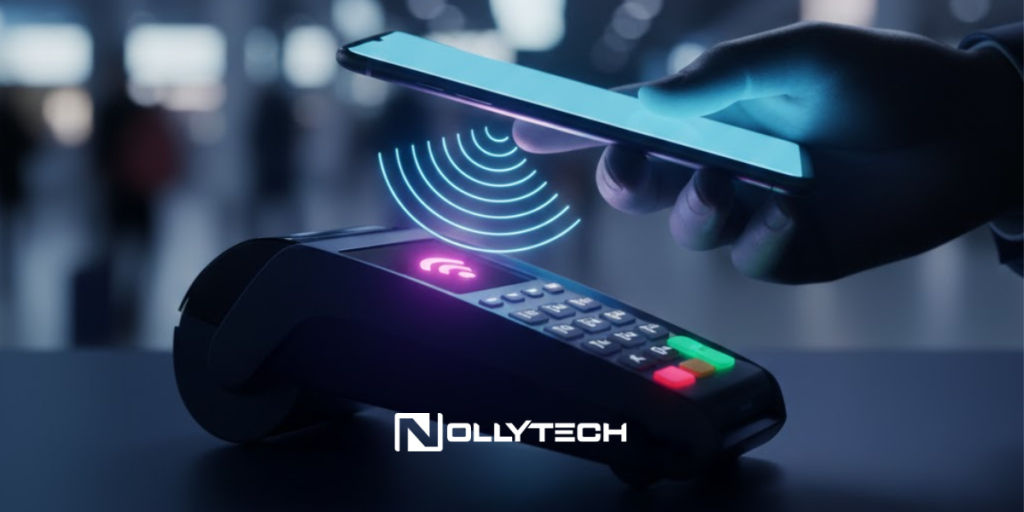
Understanding Google Pay and Google Wallet for Mobile Payments
You’re rushing through an airport in Singapore, coffee in hand, and realize you left your wallet in your carry-on bag somewhere in the security line. A few years ago, this would have meant a frantic search or going without caffeine. Today, you simply unlock your phone, tap it against the payment terminal, and your transaction completes in seconds.
This is how Google Pay works in practice, and it’s reshaping how professionals handle payments while traveling, managing expenses, and streamlining daily transactions across multiple countries.
Google Pay functions as a digital wallet that stores your credit cards, debit cards, loyalty programs, and transit passes on your Android phone or Wear OS smartwatch. When you tap to pay at a contactless payment terminal, the app uses Near Field Communication (NFC) technology to transmit an encrypted token rather than your actual card number. This approach makes mobile payments both faster and more secure than traditional card transactions.
One important clarification: if you’re in the United States, you’ll actually use Google Wallet rather than Google Pay for contactless payments. Google consolidated its payment services in 2022, making Google Wallet the primary app for storing cards and making tap-to-pay transactions. The Google Pay app still exists in some regions and handles peer-to-peer money transfers, but the core payment functionality lives in Google Wallet for US users.
How Google Pay’s NFC Technology Processes Transactions
Understanding the technology behind contactless payments helps explain why this system has become the preferred payment method for millions of users worldwide. When you hold your phone near a payment terminal, several things happen in milliseconds.
Your phone’s NFC antenna creates a short-range wireless connection with the terminal. This connection only works within about four centimeters, which prevents accidental payments or interception from a distance. Through this connection, Google Pay sends a tokenized version of your card details. Tokenization means the system generates a unique virtual card number for that specific transaction rather than transmitting your actual credit card number.
The payment terminal receives this token and processes it through the card network just like a regular card transaction. Your bank verifies the payment, and the merchant receives confirmation. The entire process typically takes two to three seconds from tap to approval.
For authentication, Google Pay uses your device’s security features. This might be your fingerprint, face recognition, a PIN, or a pattern unlock. The Consumer Device Cardholder Verification Method (CDCVM) allows your phone to verify your identity without requiring a separate PIN entry on the payment terminal, making transactions faster while maintaining security.
Setting Up Google Pay on Your Android Device
Getting started with mobile payments requires a few minutes of initial setup, but the convenience pays dividends every time you make a purchase. Here’s how to configure your device for contactless payments.
Requirements Before You Begin
Your Android phone needs to meet several requirements for Google Pay to work with contactless transactions. The device must run Android 9.0 (Pie) or higher and include an NFC chip. Most Android phones manufactured in the past five years include NFC hardware, but you can verify by opening Settings, searching for “NFC,” and checking if the option appears.
Your phone must also be Play Protect certified, which means it runs approved software and hasn’t been modified with custom firmware or root access. Google implements this requirement because rooted devices present potential security vulnerabilities that could compromise payment information.
Adding Your First Payment Card
Open the Google Wallet app on your phone. If you don’t have it installed, download it from the Google Play Store. Tap the “Add to Wallet” button, typically located in the bottom right corner, and select “Payment card.” You can either scan your card using your phone’s camera or enter the details manually.
After entering your card information, Google contacts your bank to verify the card. Most banks send a verification code via SMS or email, though some require you to call their support line or verify through their banking app. Once verified, your card appears in Google Wallet with a blue checkmark indicating it’s ready for contactless payments.
Google Wallet supports over 4,000 banks in the United States alone, including major institutions like Bank of America, Chase, Citibank, and Wells Fargo. International support continues expanding, with Google Pay now available in over 100 countries.
Making Contactless Payments In-Store
Once your cards are set up, using Google Pay at checkout becomes nearly automatic. Look for the contactless payment symbol on the terminal. This icon resembles a sideways WiFi symbol or shows the Google Pay logo. Most major retailers, restaurants, and transit systems now accept contactless payments.
Unlock your phone using your preferred security method. You don’t need to open the Google Wallet app. Simply hold the back of your phone near the payment terminal for a few seconds. The NFC antenna is typically located near the top or middle of the phone, so position that area closest to the terminal.
Wait for the confirmation. A blue checkmark appears on your screen when the payment succeeds, and the terminal usually beeps or displays a confirmation message. For larger transactions, you might need to enter a PIN on the terminal or sign a receipt, depending on your bank’s policies and the merchant’s system.
If the payment doesn’t process on the first attempt, try repositioning your phone. The NFC connection requires close proximity, so holding your phone closer or adjusting the angle often resolves connection issues.
Using Google Pay for Online and In-App Purchases
Contactless in-store payments represent just one part of Google Pay’s functionality. The service integrates across Google’s entire ecosystem, enabling faster checkout wherever you shop online.
When you encounter a Google Pay button during online checkout, clicking it pulls your saved payment information directly from your Google account. This eliminates manually entering card numbers, billing addresses, and security codes for every purchase. Major platforms including Airbnb, Uber, DoorDash, and thousands of other apps and websites support Google Pay checkout.
Chrome browser integration extends this convenience to any website where you shop. When you save cards to Google Pay, Chrome can autofill those details during checkout, reducing friction in the purchasing process while maintaining the security benefits of tokenized transactions.
For recurring purchases or subscriptions through Google Play, your stored payment methods work automatically. This includes app purchases, streaming subscriptions like YouTube Premium, and any other recurring charges tied to your Google account.
Managing Transit Passes, Loyalty Cards, and More
Google Wallet functions as more than just a payment app. It consolidates various cards and passes that professionals carry daily, reducing wallet bulk while keeping everything accessible on your phone.
Transit Passes
Many public transit systems now accept Google Pay directly. Cities including London, Singapore, Sydney, and numerous US metropolitan areas allow you to tap your phone instead of a physical transit card. Some systems let you load a virtual transit pass to Google Wallet, while others simply charge your default payment card for each ride.
For frequent travelers, this feature eliminates the need to purchase and manage separate transit cards in each city you visit. Your phone becomes your universal transit pass wherever contactless payments are accepted.
Loyalty Programs and Gift Cards
Google Wallet stores loyalty cards from retailers, airlines, and restaurants. Scan the barcode on your existing loyalty card or search for the program by name to add it. When checking out at participating stores, you can present your loyalty card from Google Wallet before making your payment, earning points without carrying additional plastic.
Gift cards work similarly. Add them to Google Wallet by entering the card number and PIN, and present them at checkout just like physical cards. This keeps unused gift card balances accessible and prevents them from getting lost in desk drawers.
Security Features That Protect Your Payments
Mobile payment security often concerns first-time users, but Google Pay incorporates multiple protection layers that actually make it safer than physical cards in many scenarios.
Tokenization means merchants never receive your actual card number. Even if a retailer’s systems were compromised, attackers couldn’t capture usable card data from Google Pay transactions. Each transaction uses a unique token that can’t be reused.
Device authentication provides another security layer. Unlike a contactless card that anyone could tap without verification, Google Pay requires you to unlock your device before each transaction. This means a lost phone can’t be used for payments without your PIN, fingerprint, or face.
If you do lose your phone, Google’s Find My Device service lets you remotely lock the device or erase it entirely, immediately disabling all payment functionality. You don’t need to contact each card issuer individually to freeze your cards.
Transaction notifications appear on your phone after each payment, providing real-time visibility into your spending. If you see an unauthorized charge, you can dispute it immediately rather than discovering it on a monthly statement.
Google Pay for Business Travel and International Use
For professionals who travel internationally, mobile payments offer particular advantages. Your Google Pay account works in any country where the service is available, using your existing cards just as they would work for physical purchases abroad.
Currency conversion happens automatically through your card issuer’s standard foreign transaction process. This means international mobile payments incur the same fees as physical card swipes abroad. If your card has no foreign transaction fees, you won’t pay extra for using Google Pay internationally.
Transit integration proves especially valuable during business travel. Instead of queuing to buy subway cards or figuring out unfamiliar ticket machines, you can tap your phone on transit turnstiles in supported cities. London’s Underground, Singapore’s MRT, and many other systems accept Google Pay directly.
Expense tracking becomes simpler when all transactions funnel through a single digital wallet. Google Wallet maintains a transaction history that you can review for expense reports, and integration with Google’s other services makes exporting this data straightforward.
Comparing Google Pay with Apple Pay and Samsung Wallet
The mobile payment market includes three major players, each tied to specific device ecosystems. Understanding the differences helps you choose the right solution or work with colleagues who use different platforms.
Apple Pay serves iPhone, iPad, and Apple Watch users exclusively. It functions nearly identically to Google Pay, using NFC for contactless payments and tokenization for security. Apple Pay often has slightly wider merchant acceptance because Apple entered the mobile payment market earlier, but the gap has narrowed significantly.
Samsung Wallet works on Samsung devices and offers similar functionality to Google Pay. Samsung’s unique feature is Magnetic Secure Transmission (MST), which can work with older payment terminals that don’t support NFC. However, Samsung is phasing out MST support on newer devices.
For Android users on non-Samsung devices, Google Pay remains the primary option. Google’s deep integration with the Android operating system and broad bank support make it the most accessible choice for the Android ecosystem.
Getting the Most From Mobile Payments
After initial setup, several practices help you maximize the benefits of using Google Pay as your primary payment method.
Set your most-used card as the default. This card will be charged when you tap to pay without manually selecting a payment method. If you have a card that earns higher rewards at certain merchants, you can still switch cards at checkout by opening Google Wallet and selecting a different option before tapping.
Enable notifications to track spending in real-time. Each payment triggers an alert showing the amount and merchant, creating an automatic expense log that helps with budgeting and detecting unauthorized charges.
Keep your phone charged when traveling. Unlike physical cards, mobile payments require a functioning phone. Most Android devices can’t make payments when the battery is completely dead, so maintaining charge becomes essential when you’re relying solely on digital payments.
Verify your NFC antenna location. Knowing exactly where your phone’s NFC chip is positioned helps you tap efficiently at checkout, avoiding the awkward repositioning that sometimes happens when holding the phone at the wrong angle.
Google Pay transforms the payment experience from fumbling with cards to a simple tap. For professionals managing expenses across multiple currencies and countries, the combination of convenience, security, and integration makes mobile payments worth the minimal setup effort.