
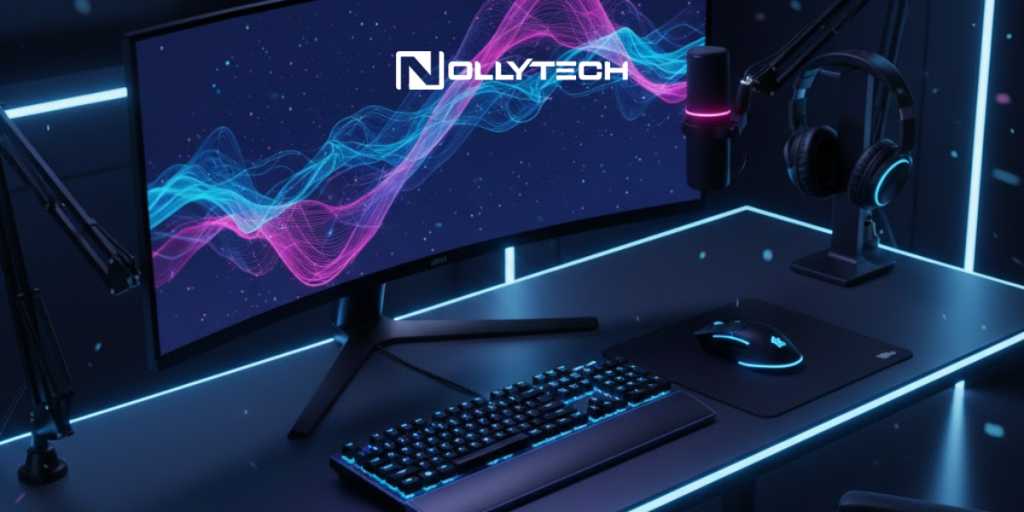
Your computer system relies on a carefully orchestrated relationship between hardware components that enable everything you do. Whether you’re leading a video conference with colleagues across three time zones, preparing a client presentation, or collaborating on documents with your distributed team, input and output devices make these interactions possible.
Understanding how these peripheral devices function helps you make smarter technology decisions. You can select hardware that boosts your productivity, supports your remote work arrangements, and integrates seamlessly with your existing technology infrastructure.
This guide explores the essential input devices and output devices that power modern professional computing. You’ll discover how each hardware device serves specific purposes and learn which computer peripherals best match your workflow needs.
Understanding Input and Output Devices: The Basics
Every computer system processes information through a straightforward cycle. You send data through input devices, the central processing unit handles that data, and output devices present the results in a format you can use.
Input devices let you communicate with your computer. They convert your physical actions into digital signals the processing unit can interpret. When you type on a keyboard, click a mouse, or speak into a microphone, you’re using input devices to send data into the system.
Output devices work in the opposite direction. They receive data from the computer and convert it into something you can see, hear, or hold. Your monitor provides visual output, your speakers deliver audio output, and your printer produces physical format documents.
Some peripheral devices function as both input and output. Touchscreen monitors, for example, display output while also accepting your touch commands as input. Headsets combine speaker output with microphone input in a single hardware device.
This input-output relationship forms the foundation of your user experience with any computer hardware.
Essential Input Devices for Professional Productivity
Input devices serve as your primary interface with your computer system. Selecting the right hardware components directly impacts how efficiently you work and how comfortable you remain throughout long workdays.
Keyboard: Your Primary Data Entry Tool
The keyboard remains the most fundamental input device for professional work. Every email you compose, every report you write, and every data entry task you complete passes through this essential hardware device.
Modern keyboards fall into several categories based on construction and connectivity. Mechanical keyboards feature individual switches under each key, providing tactile feedback that many professionals prefer for extended typing sessions. Membrane keyboards use a pressure pad system that offers quieter operation, making them suitable for shared office spaces.
Wireless connectivity has transformed how you can use keyboards in modern workplaces. Bluetooth technology allows you to connect to multiple devices and switch between your laptop, tablet, and desktop without untangling cables. This flexibility supports the hybrid work arrangements many distributed teams require.
Ergonomic design features help prevent repetitive strain injuries during long work sessions. Split keyboards position your hands at natural angles. Wrist rests reduce pressure points. Adjustable tilt settings let you customize the typing angle to match your desk setup and chair height.
Mouse and Pointing Devices: Precision Navigation
The mouse serves as your primary pointing device for screen navigation. You use it constantly to click icons, select text, drag files, and interact with virtually every application on your computer screen.
Traditional optical mice use LED or laser sensors to track movement across your desk surface. These mice offer precision suitable for document work, web browsing, and general office tasks. Gaming mice provide higher sensitivity settings and additional buttons that some professionals repurpose for productivity shortcuts.
Trackballs offer an ergonomic alternative that many professionals find more comfortable during extended use. Instead of moving the entire device, you rotate a ball with your thumb or fingers to control the cursor. This design reduces arm and wrist movement, which can help prevent strain injuries in enterprise environments where employees use computers for eight or more hours daily.
Touchpad functionality, built into laptops, provides gesture-based control without requiring an external device. Multi-finger gestures let you scroll, zoom, and switch between applications with practiced movements.
Microphones: Voice Communication and Recognition
Microphones convert your voice into audio signals your computer can process and transmit. In today’s distributed workforce, high-quality microphone input matters more than ever for video conferencing, voice recognition, and content creation.
Different microphone designs serve different professional needs. Omnidirectional microphones capture sound from all directions, working well for conference room setups where multiple speakers participate. Unidirectional microphones focus on sound from a single direction, reducing background noise during individual calls from home offices or open-plan workspaces.
Close-talk microphones, often integrated into headsets, eliminate ambient noise by positioning the input source close to your mouth. This design works exceptionally well with voice recognition software that many professionals now use for dictation, transcription, and hands-free device control.
Modern USB connection microphones simplify setup by handling their own audio processing. You plug them into an available port, and they work immediately without requiring separate sound card installation or driver configuration.
Webcams: Visual Communication Hardware
Webcams capture video input for transmission during calls, meetings, and recordings. As remote work has become standard for many global workforce members, webcam quality directly affects how professionally you present yourself to colleagues and clients.
The image sensor inside your webcam determines the quality of video it produces. CMOS sensors power most commercial webcams, with higher-end models offering improved low-light performance and sharper images. Resolution matters too. HD webcams producing 1080p video have become the standard for professional use.
Many professionals now position external webcams at eye level, rather than relying on built-in laptop cameras that shoot from below. This simple change improves your appearance on camera and creates more natural visual communication during extended meetings.
Some advanced webcams include features specifically designed for professional productivity. Auto-framing keeps you centered even when you move. Background blur maintains focus on you while obscuring distracting home office elements. These AI-enabled devices help you maintain professional presence regardless of your physical location.
Scanners: Converting Physical to Digital Format
Scanners serve as optical input devices that convert physical documents, photos, and other materials into digital format files. Despite the shift toward paperless operations, many professionals still need to digitize contracts, receipts, signed documents, and reference materials.
Flatbed scanners provide high-quality digitization for individual documents, photos, and bound materials like books. They work well for occasional scanning needs and produce archival-quality images when properly configured.
Document-fed scanners handle high-volume scanning tasks efficiently. Many professionals working in legal, medical, or financial services need to process dozens or hundreds of pages daily. These scanners automate the feeding process and often include duplex capability to capture both sides of documents in a single pass.
Multi-function devices combine scanning with printing, copying, and sometimes faxing in a single hardware device. For many enterprise environments, these combination units represent the most practical choice for shared office spaces.
Output Devices That Display Your Work
Output devices present the results of computer processing in formats you can perceive and use. These hardware components convert digital signals into visual, audio, or physical format outputs.
Monitors: Your Primary Visual Output
Monitors display everything you do on your computer. The quality, size, and features of your display panel directly impact your productivity and eye comfort during long work sessions.
Modern display technology has evolved significantly from the bulky cathode ray tube monitors of previous decades. LED-backlit LCD monitors now dominate professional workspaces, offering thin profiles, energy efficiency, and excellent image quality. OLED panels provide superior contrast and color accuracy for design professionals who need precise visual output.
Resolution determines how much detail your monitor can display. Higher resolution screens show more information, reducing scrolling and window switching. Many professionals working with spreadsheets, documents, or code find that larger, higher-resolution monitors significantly improve their workflow efficiency.
Multiple monitor setups have become common in enterprise environments. Connecting two or more displays to your computer system extends your visual workspace, letting you reference materials on one screen while working on another. This arrangement particularly benefits professionals who manage complex projects or work across multiple applications simultaneously.
Connection options include HDMI, DisplayPort, USB-C, and older VGA interfaces. Modern monitors often support multiple connection types, giving you flexibility when working with different computers or laptops.
Printers: Physical Format Document Creation
Printers transform digital documents into physical copies you can sign, file, mail, or distribute. Despite digital transformation trends, printing remains essential for many professional functions.
Laser printers excel at producing high volumes of text-based documents quickly and cost-effectively. These devices use toner rather than ink, producing crisp text and handling heavy workloads without frequent supply replacement. Many offices rely on network-connected laser printers that serve multiple team members.
Inkjet printers offer superior color reproduction for photos, graphics, and marketing materials. While they typically cost less upfront than laser printers, ink replacement expenses can add up for high-volume users. They work well for occasional color printing needs or specialized applications requiring photo-quality output.
Multi-function printers combine printing with scanning, copying, and faxing capabilities. These devices reduce hardware costs and save space in modern workspaces where equipment footprint matters.
Wireless connection options let you print from laptops, tablets, and smartphones without direct USB connections. Cloud printing extends this further, allowing authorized users to print documents from anywhere with internet access.
Audio Output: Speakers and Headphones
Speakers and headphones provide audio output that completes your computing experience. From video call audio to music during focused work sessions, sound output devices matter for productivity and entertainment alike.
External speakers range from compact USB-powered units to sophisticated multi-channel systems. For most professional work, clarity matters more than volume. Quality speakers with clear audio output help you understand colleagues during conference calls and catch important details in recorded presentations.
Headphones offer private audio experiences essential for open office environments and shared home workspaces. Closed-back designs isolate outside sounds, helping you concentrate in noisy settings. Many professionals keep headphones within reach for calls that require focused listening or work sessions that demand minimal distraction.
Wireless connectivity through Bluetooth technology has made headphones more convenient for professional use. You can move freely during calls, connect the same headphones to multiple devices, and eliminate cable clutter from your workspace.
Noise-canceling headphones actively reduce ambient sound using microphones and processing. This technology helps professionals in airport lounges, coffee shops, and busy offices maintain focus despite surrounding activity.
Projectors: Large-Format Visual Output
Projectors enable you to share visual output with groups larger than a single monitor can serve. These devices project computer video output onto screens, walls, or other surfaces for presentations, training sessions, and collaborative meetings.
Business projectors prioritize brightness and portability over maximum resolution. They produce images visible even in partially lit conference rooms. Many modern projectors include wireless connection options, letting presenters connect without cables that limit their movement.
For enterprise environments with dedicated presentation spaces, installed projectors provide reliable performance without setup time. These systems often integrate with room control systems, allowing one-touch meeting starts.
Interactive projectors add touch or stylus input capability to projected images. These devices combine output and input functions, letting presenters annotate slides, draw diagrams, and interact with content during presentations.
Choosing the Right Peripheral Devices for Your Needs
Selecting input and output devices requires matching hardware capabilities to your specific professional requirements. The best computer peripherals for a graphic designer differ significantly from those an accountant needs.
Consider how you spend your working hours. If you type extensively, invest in a quality keyboard with ergonomic design. If you participate in frequent video calls, prioritize webcam and microphone quality. If you work with visual content, your monitor specifications matter most.
Connectivity requirements depend on your devices and workspace. USB connection remains the most common interface for peripheral devices, but wireless options offer flexibility for distributed teams and hybrid work arrangements. Consider whether you need to switch devices frequently, as wireless connectivity simplifies this transition.
Durability and warranty matter for hardware you use daily. Enterprise hardware often costs more upfront but withstands constant use better than consumer-grade alternatives. For equipment central to your productivity, reliability justifies higher investment.
Your technology infrastructure may impose requirements. Check compatibility with your operating system, available ports on your computer, and any device management policies your organization enforces.
Maintaining Your Computer Peripherals
Proper maintenance extends the lifespan of your input and output devices while ensuring consistent performance. Regular attention to your hardware components prevents problems that disrupt your work.
Keep keyboards clean to maintain responsive key action. Dust, crumbs, and debris accumulate between keys, eventually affecting performance. Compressed air dislodges particles, and regular wiping prevents buildup.
Mouse sensors require clear optical paths. Clean the bottom surface of optical mice periodically. For trackballs, remove the ball and clean both the ball surface and the socket cavity.
Monitor screens attract dust and fingerprints that degrade image quality. Use appropriate cleaning solutions and microfiber cloths designed for display panels. Avoid harsh chemicals that can damage screen coatings.
Printer maintenance varies by type. Inkjet printers may need occasional print head cleaning cycles. Laser printers require toner replacement and periodic drum cleaning. Follow manufacturer recommendations for your specific devices.
The Future of Input and Output Devices
Peripheral devices continue evolving as new technologies emerge. Understanding these trends helps you make forward-looking purchasing decisions and prepare for changing workplace requirements.
Voice recognition and natural language processing improve steadily, suggesting microphones and related audio input devices will become increasingly important for professional computing. Many professionals already use voice commands for routine tasks, with accuracy improving each year.
AI-enabled devices are adding intelligence to traditional peripherals. Smart webcams that adjust settings automatically, keyboards with usage analytics, and displays that optimize for ambient lighting represent early examples of this trend.
Sustainability considerations are influencing peripheral design. According to the Environmental Protection Agency, manufacturers now offer devices made from recycled materials, designed for longer lifespans, and easier to recycle at end of life. For organizations prioritizing environmental responsibility, these factors increasingly matter alongside traditional specifications.
Wireless technology continues advancing, with newer standards offering faster speeds, lower latency, and improved power efficiency. Future peripheral devices will rely less on wired connection while maintaining or improving performance.
Making Technology Work for Your Professional Success
Understanding input and output devices empowers you to build a computer system that genuinely supports your work. The right peripheral devices reduce friction, prevent discomfort, and help you accomplish more with less effort.
Start by evaluating your current setup. Which hardware components serve you well? Which cause frustration or limit your capabilities? Identifying gaps helps you prioritize improvements.
Consider the total cost of ownership, not just purchase price. A quality keyboard that lasts five years may cost less per year than a cheap alternative replaced annually. Professional-grade hardware often proves more economical over time.
Your peripheral devices form the physical interface between you and your digital work. Investing in hardware that matches your needs and maintains your comfort pays dividends every working day.


